Submitting Daily Reports (Tours) – Without Alert
This quick reference guide (QRG) describes how to submit daily reports (tour reports) as PDF files in OneStop when a OneStop Alert has been generated.
-
Log in to OneStop with your username and password.
-
Click I Agree to accept the disclaimer. You must accept it to proceed.

-
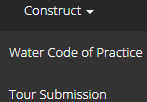
Click Construct in the top navigation bar. Select Tour Submission.
-
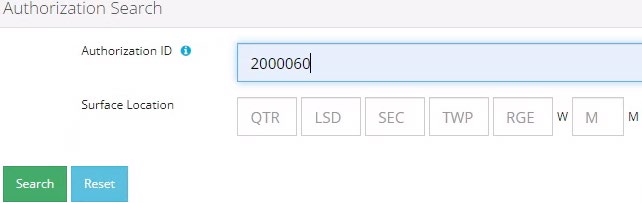
Enter the licence number in the Authorization ID field. Click Search.
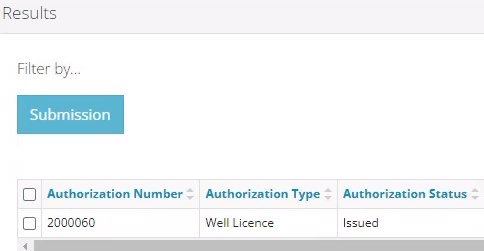
Search results appear in the Results section.
-
Optional: Click Reset to clear the search box and search results.

-
Check the box beside the required licence number. Click Submission.
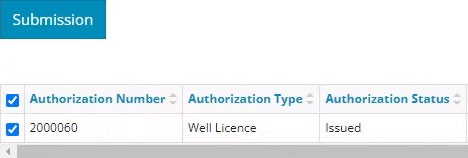
IMPORTANT: If a drilling, completion, or fracture alert appears in the table, DO NOT check the box next to the alert unless you are submitting the requested tour report associated with the alert. Data submitted for a downhole abandonment will generate a completion alert. The tour report must be submitted through that alert.
-
Click Other Tour Submission

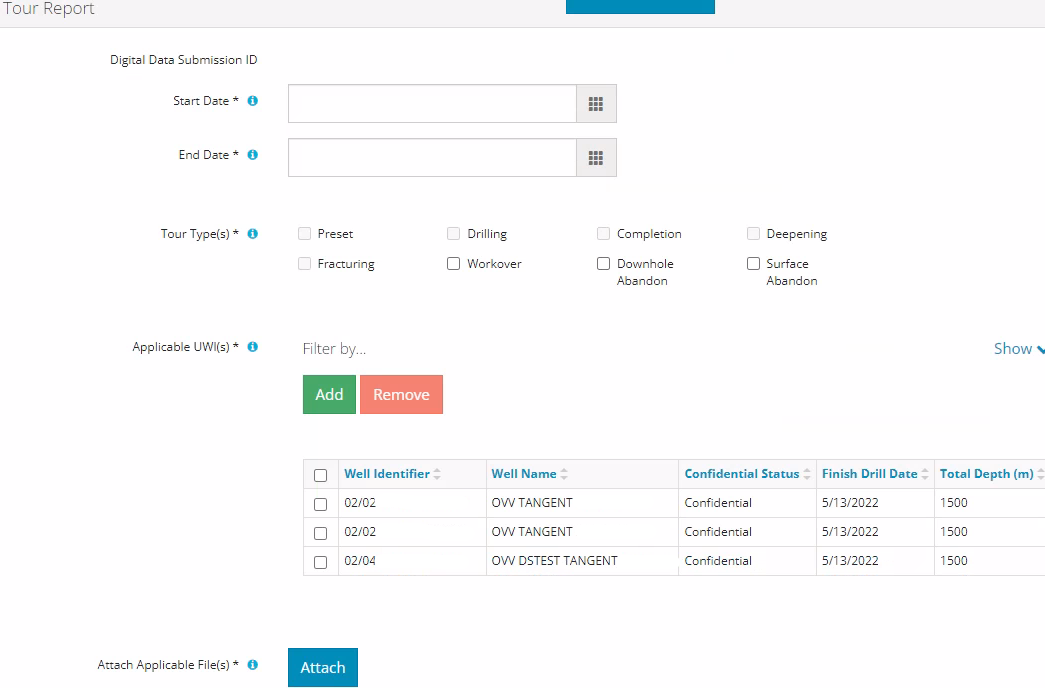
The Assessment Tour Report page opens.
-
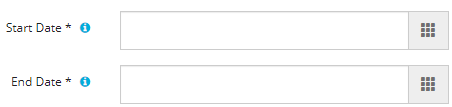
In the Tour Report section, enter the Start Date and End Date of the operation.
-
Select the Tour Type being submitted.
-
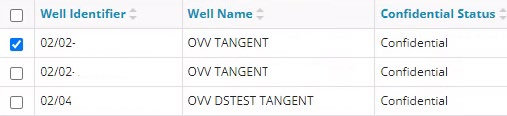
If applicable, select a relevant unique well identifier (UWI).
-
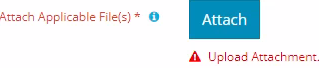
Click Attach to include one or more applicable files. Locate the PDF(s) and attach them.

-
Click
 to ensure the submission is ready (i.e., no error messages).
 A message appears validating your successful entry

Errors will appear in red. Fix the errors and validate again.
-
Click Accept Disclaimer.

-
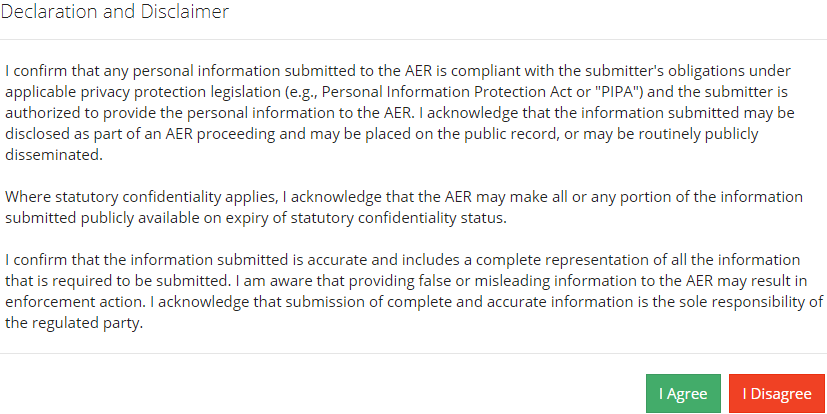
The Declaration and Disclaimer message appears to confirm your submission is accurate. Click I Agree to proceed with your submission.
-
The Declaration and Disclaimer window closes and OneStop returns you to the Tour Report section. Click Submit.

-
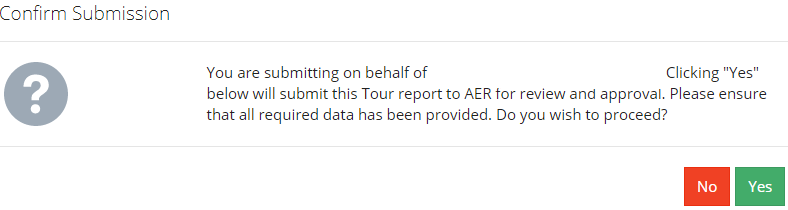
A message appears to confirm your submission. Click Yes.
-
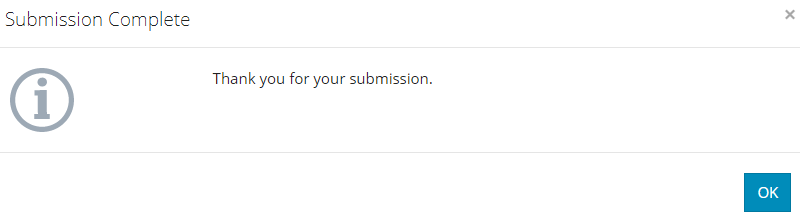
A message appears signaling a complete submission. Click OK to close the message box.