Submitting Daily Reports (Tours) – With Alert
This quick reference guide (QRG) describes how to submit daily reports (tour reports) as PDF files in OneStop when a OneStop Alert has been generated.
-
Log in to OneStop with your username and password.
-
Click I Agree to accept the disclaimer. You must accept it to proceed.

-
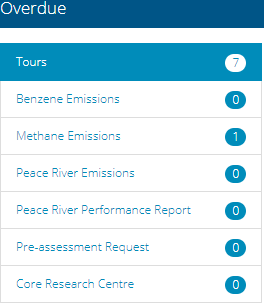
On the main landing page, review the Pending and Overdue sections.
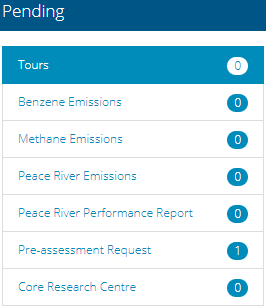
- If it has been less than seven days since you submitted drilling or completion data in DDS, look for the licence number in the Pending section.
- If it has been more than seven days, look for the licence number in the Overdue section.
-
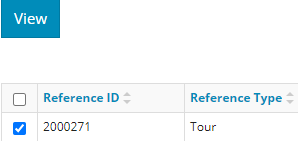
Check the box beside the licence number you wish to submit. Click View.
-
The Tour Report window opens displaying the details. Ensure the information in the report is accurate and that you are submitting the correct report.
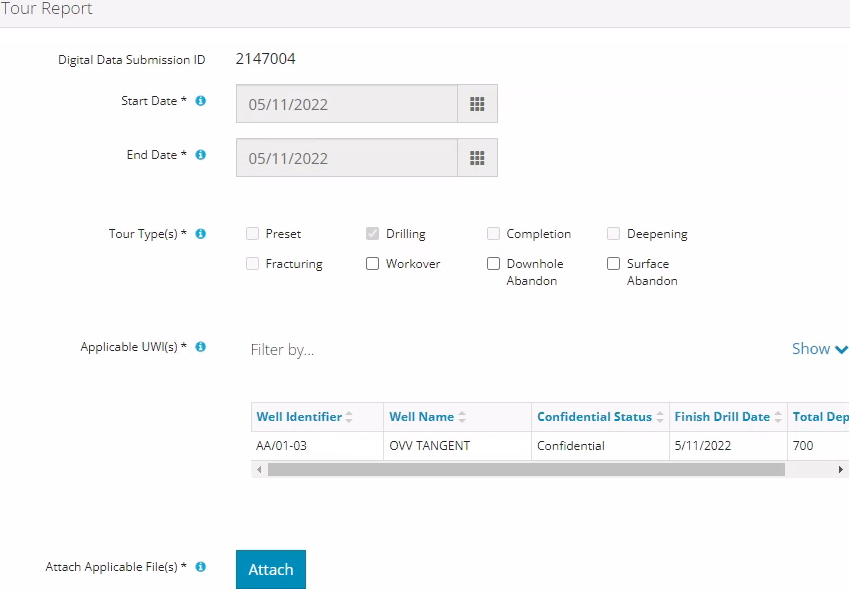
Note: A downhole abandonment submission in DDS will generate a completions alert. Submit the tour through that alert. The Completions tour type will be preselected; also select Downhole Abandonment to ensure it is accurately identified.

-
Click Attach to include one or more applicable files. Locate the PDF(s) and attach them.

-
Click Validate.
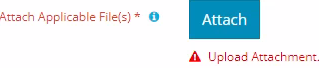
 Errors will appear in red. Fix the errors and validate again.
-
Click Accept Disclaimer.

-
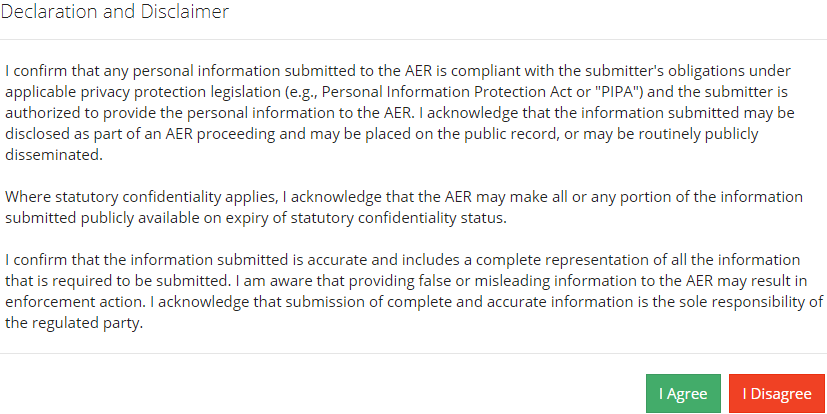
The Declaration and Disclaimer message appears to confirm your submission is accurate. Click I Agree to proceed with your submission.
-
The Declaration and Disclaimer window closes and OneStop returns you to the Tour Report section. Click Submit.

-
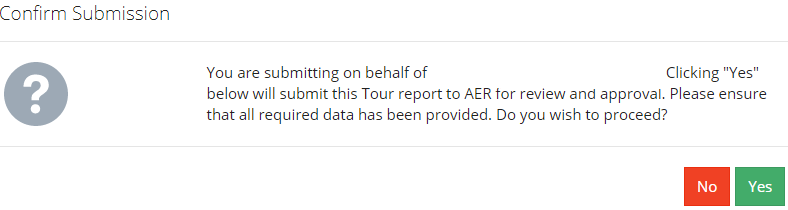
A message appears to confirm your submission. Click Yes.
-
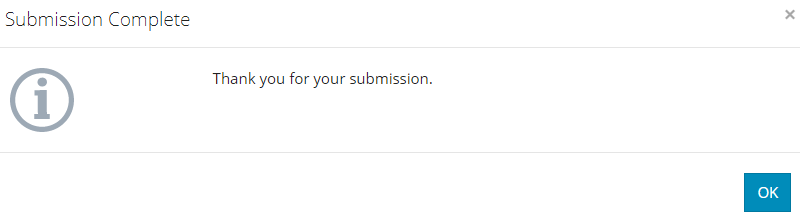
A message appears signaling a complete submission. Click OK to close the message box.