Introduction
User Guides, Quick References Guides, and Resources
This is a source for all resources, references and user guides for the AER OneStop tool(s).
OneStop: Our Automated Review Technology
As part of our Integrated Decision Approach, we have changed the way companies apply to the AER. OneStop, our application review technology, dramatically reduces application processing timelines and wait times for companies while improving regulatory oversight.
When an operator submits an application into OneStop, the technology uses a complex set of rules to determine the necessary level of review. Lower risk applications (or components of an application) can be approved automatically through OneStop within minutes, as they’re considered routine with no impact on people or the environment. All other applications (or components of an application) are redirected to technical experts for additional review.
- reclamation certification applications;
- new and amendment applications for well and pipeline licences under Directive 056;
- well licence applications, amendments, information updates, and cancellations;
- new, amendment, and renewal applications under Public Lands Act;
- new and amendment applications under the Water Act;
- monthly and annual leak survey reports and annual performance reports under Directive 084: Requirements for Hydrocarbon Emission Controls and Gas Conservation in the Peace River Area;
- annual dehydrator benzene inventory form (inventory) for actual past calendar year performance under Directive 039: Revised Program to Reduce Benzene Emissions from Glycol Dehydrators;
- annual mandatory and voluntary closure spend targets, program commitment, closure activity and spend submissions and the area-based closure mapping tool;
- reports related to surface abandonments, initial suspension, industry inspections and reactivation under Directive 13: Suspension Requirements for Wells;
- reports related to well surface abandonment under Directive 20: Well Abandonment;
- annual methane emissions (including vent gas and fugitive emissions) report under Directive 060: Upstream Petroleum Industry Flaring, Incinerating and Venting;
- daily tour reports; and
- the following notifications:
- Code of Practice notifications under the Water Act;
- pipeline construction activities, including new line construction, liner installation, new line test, existing line test, and liner test;
- flaring and venting notifications;
- and contraventions associated with flaring and venting operations that require notification under the Environmental Protection and Enhancement Act.
- all soil and groundwater contamination management reports are to be submitted via Record of Site Condition module (the exception being submissions that are required under an EPEA approval for mining operations, which will continue to be submitted to EPEA.Reports@aer.ca).
Reports
- OneStop Applications Summary [Tableau]
- OneStop Business Rules Analysis [Tableau]
- Public Lands Disposition Site Entry Notification with Forest Management Agreement Report [Tableau]
Intended User: Submitters of well drilling, completion, fracturing and downhole abandonment reports
Daily Reports (Tours) Guides and Reference
These following quick reference guide (QRG) describes how to work with the daily reports (tour reports) functionality in OneStop. This applies to preset, drilling, completion, deepening, fracturing, and downhole abandonment operations.
OneStop Daily Reports (Tours) Permissions
You must have the following DDS roles (permissions) to submit tour reports:
- Submit eTours,
- Search Assessment, and
- Search eTours
- The Search eTours role only allows you to see the Overdue and Pending tour reports dashboard
Pre-Requisites to Submitting Daily Reports (Tours) in OneStop
The following must be considered prior to submission of Your Daily Reports (Tours) in order for submissions to be correctly submitted through OneStop:
- Summary drilling and completion data must be submitted in the Digital Data Submission (DDS) at least one hour before submitting the tour reports. During that time OneStop will create the tour alert.
- Drilling, completion, downhole abandonment, and fracturing tours must only be submitted through the alerts generated from DDS data.
- File names should begin with TR followed by the well license number, including lead zeroes, prefixes and suffixes (e.g., TRB0000321X or TR0990001).
- Other naming conventions may be added after following the format above (e.g., TR0990001 JAN01PRF).
- Tour submissions can only be amended, not deleted. All reports must be PDF files, and contain at least the minimum data requirements, as detailed in section 7 of Directive 059.
Resources:
Contact: Well Data Services Email: WellDataServices@aer.ca Phone: 403-297-8696 option 2
Submitting Daily Reports (Tours) – With Alert
This quick reference guide (QRG) describes how to submit daily reports (tour reports) as PDF files in OneStop when a OneStop Alert has been generated.
-
Log in to OneStop with your username and password.
-
Click I Agree to accept the disclaimer. You must accept it to proceed.

-
On the main landing page, review the Pending and Overdue sections.
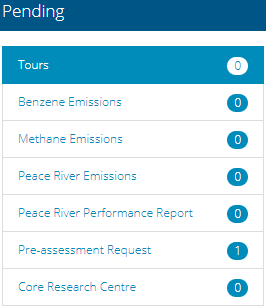
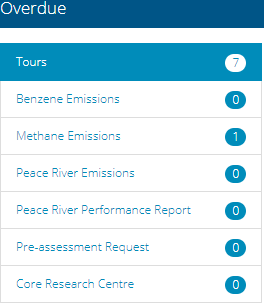
- If it has been less than seven days since you submitted drilling or completion data in DDS, look for the licence number in the Pending section.
- If it has been more than seven days, look for the licence number in the Overdue section.
-
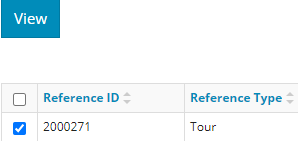
Check the box beside the licence number you wish to submit. Click View.
-
The Tour Report window opens displaying the details. Ensure the information in the report is accurate and that you are submitting the correct report.
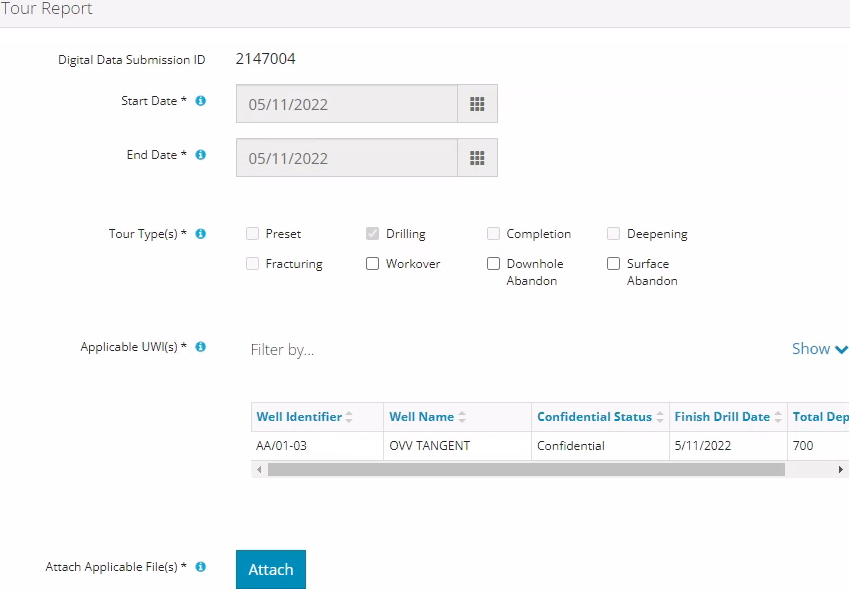
Note: A downhole abandonment submission in DDS will generate a completions alert. Submit the tour through that alert. The Completions tour type will be preselected; also select Downhole Abandonment to ensure it is accurately identified.

-
Click Attach to include one or more applicable files. Locate the PDF(s) and attach them.

-
Click Validate.
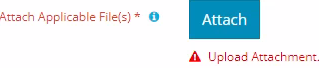
 Errors will appear in red. Fix the errors and validate again.
-
Click Accept Disclaimer.
-
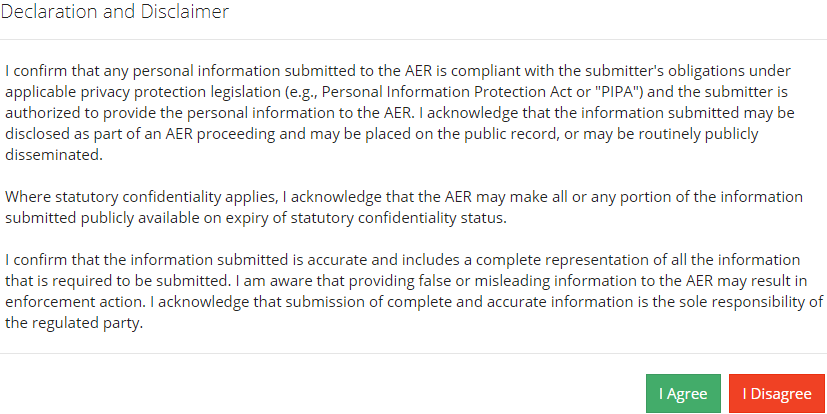
The Declaration and Disclaimer message appears to confirm your submission is accurate. Click I Agree to proceed with your submission.
-
The Declaration and Disclaimer window closes and OneStop returns you to the Tour Report section. Click Submit.

-
A message appears to confirm your submission. Click Yes.
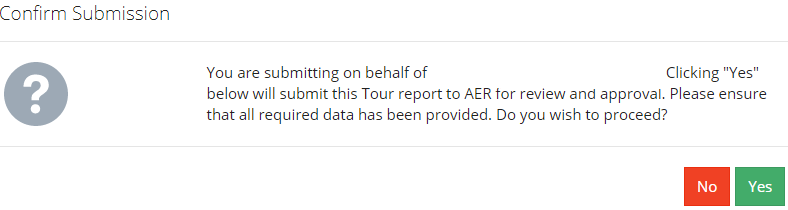
-
A message appears signaling a complete submission. Click OK to close the message box.
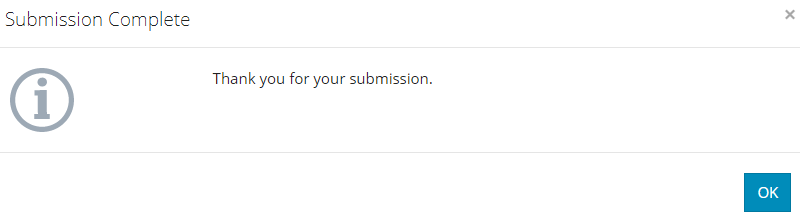
Submitting Daily Reports (Tours) – Without Alert
This quick reference guide (QRG) describes how to submit daily reports (tour reports) as PDF files in OneStop when a OneStop Alert has been generated.
-
Log in to OneStop with your username and password.
-
Click I Agree to accept the disclaimer. You must accept it to proceed.
-
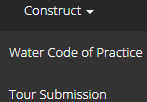
Click Construct in the top navigation bar. Select Tour Submission.
-
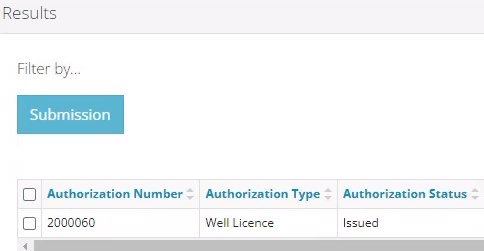
Enter the licence number in the Authorization ID field. Click Search.
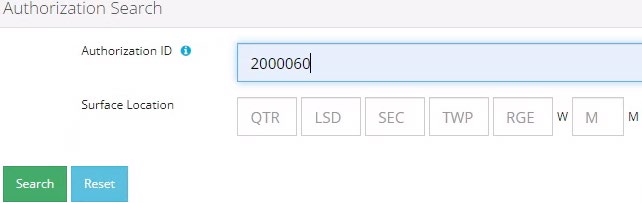
Search results appear in the Results section.
-
Optional: Click Reset to clear the search box and search results.

-
Check the box beside the required licence number. Click Submission.
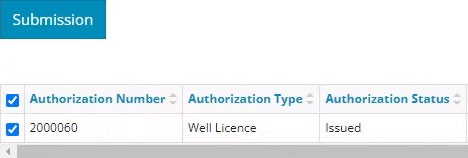
IMPORTANT: If a drilling, completion, or fracture alert appears in the table, DO NOT check the box next to the alert unless you are submitting the requested tour report associated with the alert. Data submitted for a downhole abandonment will generate a completion alert. The tour report must be submitted through that alert.
-
Click Other Tour Submission
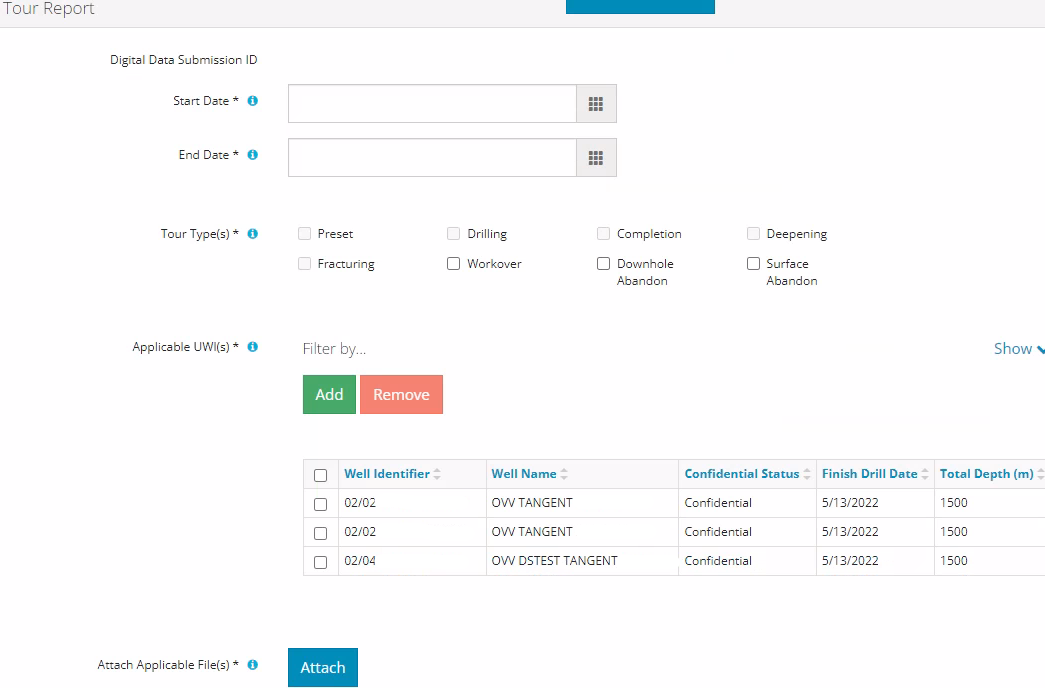
The Assessment Tour Report page opens.
-
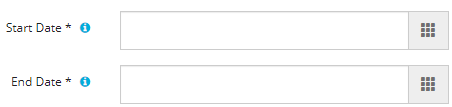
In the Tour Report section, enter the Start Date and End Date of the operation.
-
Select the Tour Type being submitted.
-
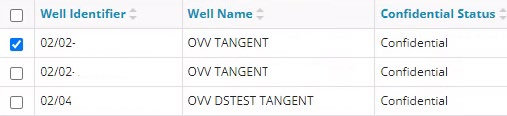
If applicable, select a relevant unique well identifier (UWI).
-
Click Attach to include one or more applicable files. Locate the PDF(s) and attach them.
-
Click
to ensure the submission is ready (i.e., no error messages). A message appears validating your successful entry

Errors will appear in red. Fix the errors and validate again.
-
Click Accept Disclaimer.
-
The Declaration and Disclaimer message appears to confirm your submission is accurate. Click I Agree to proceed with your submission.
-
The Declaration and Disclaimer window closes and OneStop returns you to the Tour Report section. Click Submit.
-
A message appears to confirm your submission. Click Yes.
-
A message appears signaling a complete submission. Click OK to close the message box.
Amending Daily Reports (Tours)
Intended User: Submitters of well drilling, completion, servicing, and abandonment operation reports
Overview
This quick reference guide (QRG) describes how to amend daily reports (tour reports) in OneStop. Amendments apply to well drilling, completion, servicing, and abandonment operation reports as PDF files.
-
Log in to OneStop with your username and password.
-
Click I Agree to accept the disclaimer. You must accept it to proceed.
-
Click Construct in the top navigation bar. Select Tour Submission.
-
Search for the well by authorization number (well licence number). Click Search.
Well details appear in the 'Results' section.
-
Optional: Click Reset to clear the search box and searched data.
-
Check the box beside the required well. Click Submission.
-
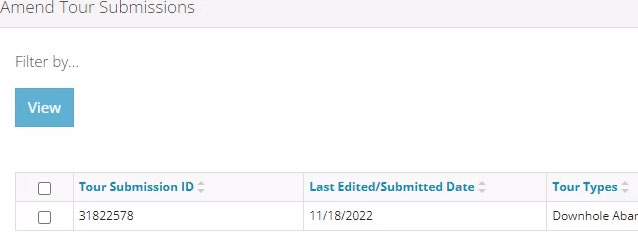
The Licence Number window opens. In the Amend Tour Submissions section, check the box beside the tour report you wish to amend. Click View.
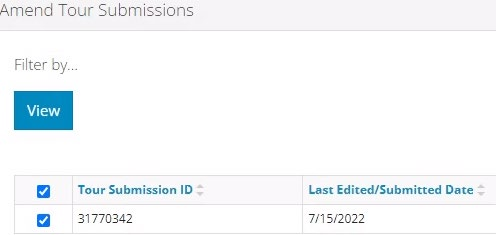
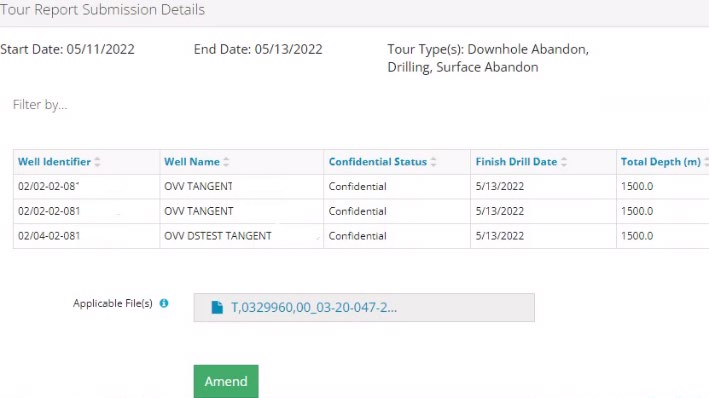
Details appear in the Tour Submission Details section.
-
Review the details ensuring the correct report was selected. You may also click on any attached files and view them.

-
Click Amend.

-
A message appears confirming your intent to amend your tour submission. Click Yes.

-
Click Attach to add files to your submission. Locate the required PDF files to be submitted. There must be at least one attachment, but multiple files may be uploaded, if needed.
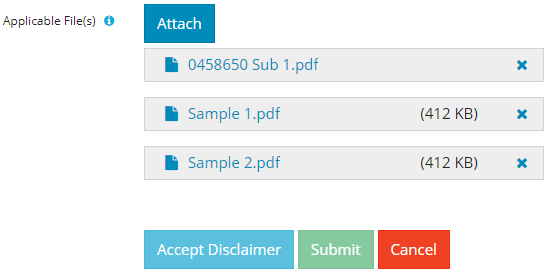
a) Optional: To remove files, click x.
-
Click Accept Disclaimer.
-
The Declaration and Disclaimer message appears to confirm your submission is accurate. Click I Agree to proceed with your submission.
-
The Declaration and Disclaimer window closes and OneStop returns you to the Tour Report Submission Details section. Click Submit.
-
A message appears to confirm completion of your tour submission. Click Yes.

-
A message appears indicating a complete amendment. Click OK to close the message box.

-
The amended submission appears in the Amend Tour Submissions section displaying a revised edited date.